The security features provided by the IEEE 802.11 standard haven’t changed much since the 802.11i amendment was ratified in 2004, which is more commonly known by its Wi-Fi Alliance certification name WPA2. 802.11w protected management frames were introduced in 2009, but it is only recently that Wi-Fi chipsets for client devices have included support for it. WPA2 introduced the robust CCMP encryption protocol as a replacement for the compromised WEP-based encryption schemes of the past. CCMP utilizes stronger 128 bit AES encryption keys. As a general rule of thumb, if you aren’t using CCMP on a Wi-Fi network designed for security, you’re doing it wrong. It’s been out for a long time and older protocols have well-established weaknesses.
However, there are some new encryption changes in the 802.11ac amendment which have mostly flown under the radar. Besides 256 QAM, wider channels, and MU-MIMO, 802.11ac now includes support for 256 bit AES keys and the GCMP encryption protocol. Galois Counter Mode Protocol is a more efficient and performance-friendly encryption protocol than CCMP.
A few interesting nuggets from section 11.4 of the 802.11ac amendment:
The AES algorithm is defined in FIPS PUB 197-2001. All AES processing used within CCMP uses AES with either a 128-bit key (CCMP-128) or a 256-bit key (CCMP-256).
And…
CCMP-128 processing expands the original MPDU size by 16 octets, 8 octets for the CCMP Header field and 8 octets for the MIC field. CCMP-256 processing expands the original MPDU size by 24 octets, 8 octets for the CCMP Header field, and 16 octets for the MIC field.
By the way, you can download the 802.11ac amendment or the entire 802.11-2012 standard from the IEEE here for free. For more on these security changes read sections 8.4.2.27 and 11.4 of the 802.11ac amendment.
It seems odd that these changes were included in the 802.11ac amendment, and not in a separate security-focussed amendment like 802.11w and 802.11i. Nothing wrong with it, just unexpected. I’m curious to see if the 802.11ax amendment includes security changes as well.
Why the addition of 256 bit AES keys? It could have something to do with a few chinks in the armor of 128 bit AES keys. The current attacks appear to be impractical, but future attacks that take advantage of quantum computing may put 128 bit AES keys at risk. NIST thinks that larger key sizes are needed to defend symmetric AES keys like those used in WPA2 against quantum computer attacks, which they say will be operational within the next 20 years. I’ll take their word for it.
Because the amendment only specifies CCMP-128 as mandatory for RSN compliance, it’s very unlikely that we’ll see CCMP-256/GCMP-256 in use anytime soon. Further, enabling 256 bit cipher suites effectively disables support for all non-802.11ac clients as well as 802.11ac clients that only support the mandatory cipher suites (most of them?). That’s because CCMP-256 and GCMP-256 pairwise keys are only compatible with 256 bit group keys, breaking backwards compatibility with legacy clients. There are also a lot of 802.11n clients out there that aren’t going away anytime soon, so actually deploying CCMP-256/GCMP-256 will require a separate CCMP-256/GCMP-256-only SSID. Excited yet?
Further, I can’t find any documentation that suggests that infrastructure vendors have implemented CCMP-256/GCMP-256 at all, just a few slide decks here and there with an overview of the changes. These cipher suites appear to be optional, so I wonder if any VHT clients or AP’s actually support them today, and when they will in the future. The Linux Wi-Fi configuration API cfg80211 and driver framework mac80211 have added software support for it. That’s about all the implementation I have found. Perhaps PCS compliance or Wi-Fi Alliance certification will eventually force the issue, or perhaps it will go the way of 802.11n Tx beamforming and never be implemented. There are a lot obstacles to overcome before 256 bit keys become practical.
However, a VHT client can negotiate a GCMP-128 RSNA within a BSS that uses a backwards-compatible CCMP-128 group key, and the 802.11 standard does support multiple pairwise cipher suites within a BSS (remember TSN’s?). That allows the GCMP-128 pairwise cipher suite to be used alongside everyday CCMP-128 pairwise and group keys on real, production networks.
To tell if a BSS is using one of the new cipher suites in a packet capture, look at a beacon frame’s RSN information element. The cipher suite selector is always 00-0F-AC for the CCMP/GCMP encryption protocols, it’s the cipher suite type that distinguishes between the specific cipher suites. For example, 00-0F-AC:4 is the default CCMP-128, 00-0F-AC:9 indicates GCMP-256 and 00-0F-AC:10 indicates CCMP-256. Group keys for a BSS with protected management frames have their own suite type numbers. Look for multiple pairwise cipher suites to find support for the new stuff. Here’s the table of the new cipher suites. I’m on the lookout for 00-0F-AC:8 (GCMP-128), but I’ve yet to find a beacon frame with it advertised.
Table 8-99—Cipher suite selectors
OUI
Suite type
Meaning
00-0F-AC
4
CCMP-128 – default pairwise cipher suite and default group cipher suite for data frames in an RSNA
00-0F-AC
6
BIP-CMAC-128—default group management cipher suite in an RSNA with management frame protection enabled
00-0F-AC
8
GCMP-128 – default for a DMG STA
00-0F-AC
9
GCMP-256
00-0F-AC
10
CCMP-256
00-0F-AC
11
BIP-GMAC-128
00-0F-AC
12
BIP-GMAC-256
00-0F-AC
13
BIP-CMAC-256
Interesting note that GCMP-128 is the default for a DMG STA, which is a directional multi-gigabit station defined in the 802.11ad amendment for operation in the 60 GHz band.
The standard limits the mixing of cipher suites so that the key sizes of the pairwise and group keys must match, and GCMP group keys can only be used with GCMP pairwise keys.
This post outlines some configuration changes which can enhance the security of 802.1X EAP methods PEAP and EAP-TTLS, which use a temporary layer 2 TLS tunnel to protect a less secure inner authentication method. While EAP-TLS doesn’t create a full TLS tunnel, it does use a TLS handshake to provide keying material for the four-way handshake. It needs strong TLS too.
Standard 802.1X security best practices should also be implemented such as using strong passwords, disabling insecure EAP methods, disabling TKIP, proper supplicant configuration, deploying sha-2 certificates, and anonymous outer usernames. The focus here is the TLS tunnel exclusively.
Not all RADIUS servers can implement all of these suggestions, but some can certainly do more than others. My experience has been with Microsoft NPS and FreeRADIUS servers so that is what I’ll refer to when discussing specific implementations. I welcome input from Aruba ClearPass and Cisco ISE administrators on configuring those servers as well.
Why go through all the trouble? It turns out the same encryption techniques that are used by web clients and servers to protect data in HTTPS sessions are also used when EAP methods rely on a TLS encrypted session. Ask any web server admin, and they’ll tell you that not all HTTPS is created equally. The same vulnerabilities that web server admins deal with exist in TLS-assisted EAP methods used on the WLAN as well. There is a lot to be learned from the TLS best practices that are recommended for web server admins.
At the end of the day, the TLS session is all that stands between user credentials and would-be hackers. It needs careful consideration to verify that it is meeting current security standards.
Here’s what to do.
Disable SSL
We’re talking specifically about SSLv2 and SSLv3 here, not TLS, the collection of which is often referred to simply as “SSL.” SSLv2 and SSLv3 were cracked long ago.
Consider TLS Methods
TLS 1.2 is the most secure TLS method available, so why not disable TLS 1.0 and TLS 1.1? Right now supplicant support for TLS 1.1 and TLS 1.2 is far from universal, and TLS 1.0 with strong ciphers is still considered secure. Keep TLS 1.0 enabled for now.
Disable Weak Cipher Suites
Cipher suites are the specific encryption algorithms that are used in a TLS session. Supplicants and servers support a broad range of them, and some of them are better than others. Many RADIUS servers have older insecure cipher suites enabled by default. This allows old supplicants that do not support newer cipher suites to still function. Unless you have older supplicants, you can disable many of these cipher suites to enhance 802.1X security.
A current listing of strong cipher suites can be found at Cipherli.st. While the website focuses on web server configuration, TLS is TLS.
Be aware that EAP-TLS requires TLS_RSA_WITH_3DES_EDE_CBC_SHA.
Microsoft NPS
Microsoft NPS relies on Schannel to provide encryption for TLS-tunneled EAP methods. In order to control the protocols Schannel uses, an administrator must alter these registry keys. Note that changing these keys affects all TLS functionality on the server, so if you run IIS or RDS with TLS, these changes will affect those applications as well. Proceed with caution. The registry keys can be found in:
A full listing of cipher suites supported by Schannel can be found here.
If the prospect of manually editing dozens of registry keys on a Windows Server doesn’t appeal to you, the good people at Nartac Software have developed an application that allows these changes to be managed in a user-friendly GUI interface. IIS Crypto allows you to make all of the registry settings necessary for this, while also including some handy templates including Best Practices, PCI, FIPS 140-2, and Defaults.
Here is IIS Crypto displaying the default Schannel configuration of a Windows Server 2012 R2 server. There is a lot not to like here…
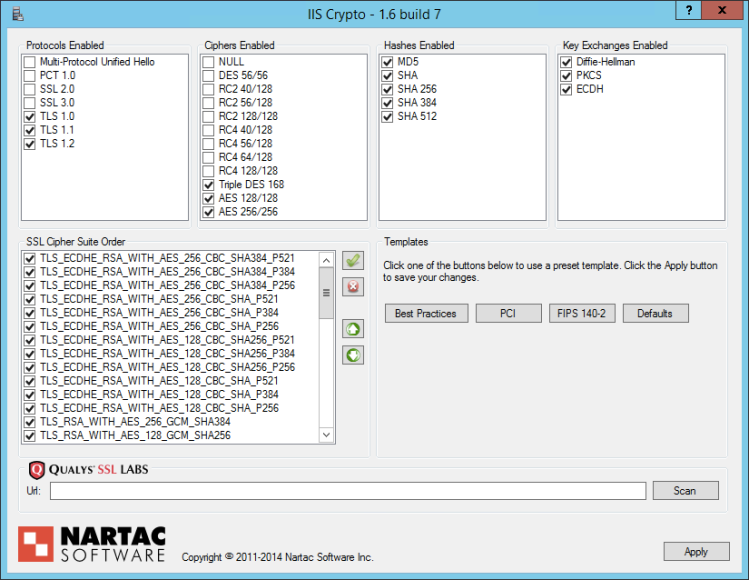
And here is the Best Practices template. Note the obsolete protocols and cipher suites that are disabled, and the order in which cipher suites are prefered is updated as well.
Be aware that manually taking control of the Schannel TLS configuration means you’re in charge of it going forward. If Microsoft updates the default configuration, your manual config may still be in place. Stay up-to-date on new TLS vulnerabilities and periodically review your configuration for needed changes.
FreeRADIUS
FreeRADIUS 3 is the current supported stable release and you should be thinking about upgrading to it if you have not already. SSLv2 and SSLv3 are not supported by FreeRADIUS 3, only TLS 1.0, TLS 1.1, and TLS 1.2.
For FreeRADIUS to require stronger cipher suites, add this to the EAP-TLS configuration in the “eap” configuration file. Alternatively, specify a colon-separated list of specific cipher suites.
cipher_list = "HIGH"
Also be aware that FreeRADIUS 2.2.6 and 3.0.7 and contain a critical bug that prevents successful TLS 1.2 sessions from starting. You should update these servers as soon as possible.
Harden Supplicants Too
Few 802.1X supplicants allow you to alter their TLS configuration. The best thing to do with supplicants is to routinely install system updates and retire clients that are EOL.
Documentation for the TLS capabilities of client supplicants is hard to come by. Microsoft published an update to Windows 7 and above to allow the use of TLS 1.1 and TLS 1.2 in its 802.1X supplicant, if configured manually for now. wpa_supplicant for Linux supports TLS 1.2 in version 2.0 and version 2.6 enabled it by default. TLS 1.2 is the default TLS version used in the supplicants for Windows 10, Mac OS 10.11, iOS 9, and Android 6.0 (Update: It appears that Apple has deferred their decision to default to TLS 1.2 in iOS 9/ Mac OS 10.11 until a later release).
Lab it Up
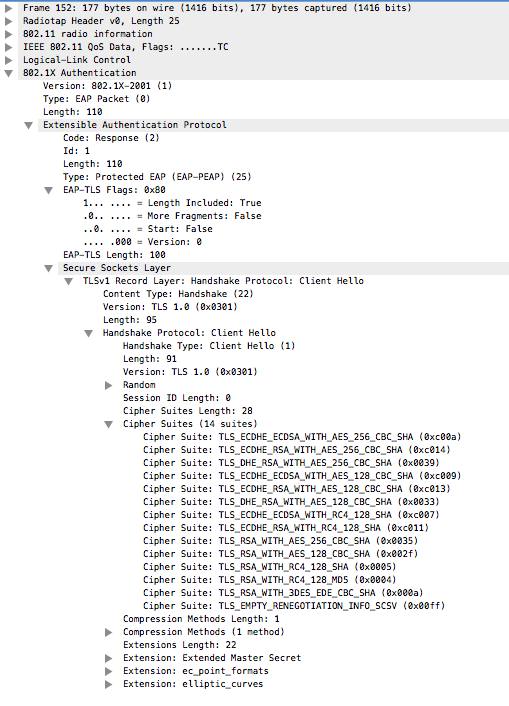
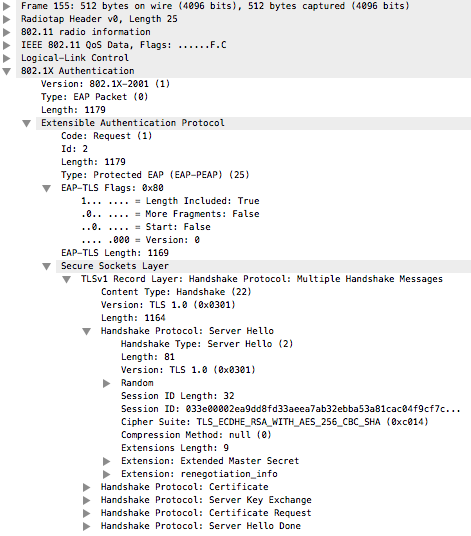
To know definitively what a client supplicant is capable of, run a packet capture on TLS-tunneled EAP authentication and observe the TLS negotiation frames, or TLS handshake, that occur right after 802.11 association and EAP identity request/response frames.
The client will send a “Client Hello” frame in which Wireshark will mark as a TLS protocol frame. This frame includes the TLS version requested by the client along with its supported cipher suites. The TLS version is the highest version the client supports.
Next, the RADIUS server will respond with a “Server Hello” frame which specifies the TLS version and cipher suite to be used during the TLS session, and includes the server certificate as well. The server will choose the best cipher suite that both client and server support and the highest TLS version that both support as well.
A few more frames are exchanged to setup the TLS session, and then EAP authentication takes place within the encrypted TLS session. It’s these first two frames that are of most concern when documenting client TLS capabilities.
This is also a useful technique to use to verify that highly secure TLS encryption is occurring in production.
In the K-12 market Chromebooks are the most common devices used in 1:1 programs. If you are designing high density Wi-Fi networks for Chromebook 1:1 programs, it helps to know how to access their Wi-Fi statistics, logs, and networking tools. This knowledge is valuable for troubleshooting day-to-day Chromebook Wi-Fi issues as well.
The Basics
Despite its simplicity, Chrome OS, the Linux variant that Chromebooks run, does have some useful diagnostics tools that can help troubleshoot Wi-Fi problems. Most of these tools are included in the crosh shell, which you can open by typing Control-Alt-T. Here are some of my go-to crosh networking commands that don’t require an explanation.
ping
route
tracepath
This command provides some good Wi-Fi stats like retries, MCS index, and also RoamThreshold, which is the SNR at which this Chromebook will attempt to roam to a new BSS. Hopefully, one day we’ll be able to modify this value on enterprise-managed Chromebooks through the Google Apps admin console.
This command is very useful in troubleshooting 802.1X issues. It shows more layer 2 details on all the BSS’s that have been discovered. In this case, /service/12 is an 802.1X network that the Chromebook is associated with, and /service/15 an open network also in range.
This command brings up a lot of valuable information including a dump of the latest full channel scan and the Wi-Fi chipset’s capabilities, among other useful data.
crosh> network_diag --wifi

iw dev wlan0 survey dump:
Survey data from wlan0
 frequency: 2412 MHz
 noise: -92 dBm
 channel active time: 63 ms
 channel busy time: 49 ms
 channel receive time: 45 ms
 channel transmit time: 0 ms
Survey data from wlan0
 frequency: 2417 MHz
 noise: -93 dBm
 channel active time: 62 ms
 channel busy time: 47 ms
 channel receive time: 41 ms
 channel transmit time: 0 ms
Survey data from wlan0
 frequency: 2422 MHz
 noise: -92 dBm
 channel active time: 63 ms
 channel busy time: 4 ms
 channel receive time: 0 ms
 channel transmit time: 0 ms

[truncated]

Survey data from wlan0
 frequency: 5220 MHz
 noise: -94 dBm
 channel active time: 124 ms
 channel busy time: 0 ms
 channel receive time: 0 ms
 channel transmit time: 0 ms
Survey data from wlan0
 frequency: 5240 MHz [in use]
 noise: -94 dBm
 channel active time: 15723 ms
 channel busy time: 513 ms
 channel receive time: 185 ms
 channel transmit time: 3 ms
Survey data from wlan0
 frequency: 5260 MHz
 noise: -94 dBm
 channel active time: 85031 ms
 channel busy time: 84907 ms
 channel receive time: 84907 ms
 channel transmit time: 84907 ms

[truncated]

iw dev wlan0 station dump:
Station 00:11:74:##:##:## (on wlan0)
 inactive time: 5444 ms
 rx bytes: 11797197
 rx packets: 38419
 tx bytes: 1703260
 tx packets: 9779
 tx retries: 14295
 tx failed: 43
 signal: -58 dBm
 signal avg: -60 dBm
 tx bitrate: 24.0 MBit/s
 rx bitrate: 300.0 MBit/s MCS 15 40MHz short GI
 authorized: yes
 authenticated: yes
 preamble: long
 WMM/WME: yes
 MFP: no
 TDLS peer: no
iw dev wlan0 scan dump:
BSS 00:11:74:##:##:##(on wlan0) -- associated
 TSF: 61418055#### usec (7d, 02:36:20)
 freq: 5240
 beacon interval: 100 TUs
 capability: ESS Privacy SpectrumMgmt ShortSlotTime (0x0511)
 signal: -60.00 dBm
 last seen: 847370 ms ago
 Information elements from Probe Response frame:
 Supported rates: 24.0* 36.0 48.0 54.0
 DS Parameter set: channel 48
 Country: US Environment: Indoor/Outdoor
 Channels [36 - 36] @ 24 dBm
 Channels [40 - 40] @ 24 dBm
 Channels [44 - 44] @ 24 dBm
 Channels [48 - 48] @ 24 dBm
 Channels [52 - 52] @ 23 dBm
 Channels [56 - 56] @ 23 dBm
 Channels [60 - 60] @ 23 dBm
 Channels [64 - 64] @ 23 dBm
 Channels [100 - 100] @ 24 dBm
 Channels [104 - 104] @ 24 dBm
 Channels [108 - 108] @ 24 dBm
 Channels [112 - 112] @ 24 dBm
 Channels [116 - 116] @ 24 dBm
 Channels [120 - 120] @ 24 dBm
 Channels [124 - 124] @ 24 dBm
 Channels [128 - 128] @ 24 dBm
 Channels [132 - 132] @ 24 dBm
 Channels [136 - 136] @ 24 dBm
 Channels [140 - 140] @ 24 dBm
 Channels [144 - 144] @ 24 dBm
 Channels [149 - 149] @ 30 dBm
 Channels [153 - 153] @ 30 dBm
 Channels [157 - 157] @ 30 dBm
 Channels [161 - 161] @ 30 dBm
 Channels [165 - 165] @ 30 dBm
 Power constraint: 3 dB
 BSS Load:
 * station count: 2
 * channel utilisation: 4/255
 * available admission capacity: 31250 [*32us]
 HT capabilities:
 Capabilities: 0x9ef
 RX LDPC
 HT20/HT40
 SM Power Save disabled
 RX HT20 SGI
 RX HT40 SGI
 TX STBC
 RX STBC 1-stream
 Max AMSDU length: 7935 bytes
 No DSSS/CCK HT40
 Maximum RX AMPDU length 65535 bytes (exponent: 0x003)
 Minimum RX AMPDU time spacing: 8 usec (0x06)
 HT TX/RX MCS rate indexes supported: 0-15
 HT operation:
 * primary channel: 48
 * secondary channel offset: below
 * STA channel width: any
 * RIFS: 1
 * HT protection: no
 * non-GF present: 1
 * OBSS non-GF present: 0
 * dual beacon: 0
 * dual CTS protection: 0
 * STBC beacon: 0
 * L-SIG TXOP Prot: 0
 * PCO active: 0
 * PCO phase: 0
 VHT capabilities:
 VHT Capabilities (0x338001b2):
 Max MPDU length: 11454
 Supported Channel Width: neither 160 nor 80+80
 RX LDPC
 short GI (80 MHz)
 TX STBC
 RX antenna pattern consistency
 TX antenna pattern consistency
 VHT RX MCS set:
 1 streams: MCS 0-9
 2 streams: MCS 0-9
 3 streams: not supported
 4 streams: not supported
 5 streams: not supported
 6 streams: not supported
 7 streams: not supported
 8 streams: not supported
 VHT RX highest supported: 0 Mbps
 VHT TX MCS set:
 1 streams: MCS 0-9
 2 streams: MCS 0-9
 3 streams: not supported
 4 streams: not supported
 5 streams: not supported
 6 streams: not supported
 7 streams: not supported
 8 streams: not supported
 VHT TX highest supported: 0 Mbps
 VHT operation:
 * channel width: 1 (80 MHz)
 * center freq segment 1: 42
 * center freq segment 2: 0
 * VHT basic MCS set: 0xfffc
 WMM: * Parameter version 1
 * u-APSD
 * BE: CW 15-1023, AIFSN 3
 * BK: CW 15-1023, AIFSN 7
 * VI: CW 7-15, AIFSN 2, TXOP 3008 usec
 * VO: CW 3-7, AIFSN 2, TXOP 1504 usec
 RSN: * Version: 1
 * Group cipher: CCMP
 * Pairwise ciphers: CCMP
 * Authentication suites: IEEE 802.1X FT/IEEE 802.1X
 * Capabilities: PreAuth 1-PTKSA-RC 1-GTKSA-RC MFP-capable (0x0081)
 * 0 PMKIDs
 * Group mgmt cipher suite: AES-128-CMAC
iw dev wlan0 link:
Connected to 00:11:74:##:##:## (on wlan0)
 freq: 5240
 RX: 11797197 bytes (38419 packets)
 TX: 1703260 bytes (9779 packets)
 signal: -58 dBm
 tx bitrate: 24.0 MBit/s

 bss flags: short-slot-time
 dtim period: 1
 beacon int: 100
That’s a lot more Wi-Fi data than most other platforms make natively accessible.
Additionally, to view most of this data without crosh, use this internal Chrome URL. Just enter it into the address bar and hit enter.
chrome://system/
Areas of interest for Wi-Fi data:
network-devices – same output as the “connectivity show devices” crosh command
network-services – same output as the “connectivity show services” crosh command
wifi_status – same output as the “network_diag –wifi” crosh command
lspci – you can see the Wi-Fi chipset hardware here (more on that later)
network_event_log
netlog
Viewing Logs
You can start logging Wi-Fi events using this crosh command.
crosh> network_logging wifi

Old flimflam tags: []
Current flimflam tags: [device+inet+manager+service+wifi]

method return sender=:1.1 -> dest=:1.146 reply_serial=2
Old wpa level: info
Current wpa level: msgdump
View the resulting device event logs at this internal Chrome URL: chrome://device-log/
Run this command to view the kernel log, which includes a lot of Wi-Fi events. I wish there was a –follow option, but currently there is not.
crosh> dmesg
A restart will return the Chromebook to normal logging levels.
And if you really want to bury yourself in logs, go to chrome://net-internals/#chromeos, click Wi-Fi to enable debugging on that interface, let the “capturing events” count creep up while you perform a task, then click “Store debug logs” to save a debug-logs_<date>.tgz archive in your Downloads folder. Be warned, the signal to noise ratio is very low with this approach. Google provides a log analyzer that you can upload these files to, but I’ve never had the need to go that far down the road. This is best used if you need to submit logs to the Google Apps Enterprise Support Team or a hardware manufacturer.
Advanced Wi-Fi Analysis with Developer Mode
But wait, there’s more! If you can put a Chromebook into Developer Mode, you can run packet captures and break into the Linux bash shell. Most enterprise-managed Chromebooks will have this mode disabled for obvious reasons, but it’s easy enough to move your test Chromebook into a test OU and disable this and other restrictions for testing purposes. (That’s IT testing, not high-stakes student testing! Make sure your OU’s clearly differentiate the two.)
Packet Capture
First, determine which channel’s frequency you’d like to run the capture, and also if channel bonding is in use. The internal URL from above will work for this as well as the “network_diag –wifi” crosh command. The frequency of the currently associated BSS is displayed at the end of that output here.
Now turn off the Wi-Fi NIC in the GUI so it can be put into monitor mode.
You can now run the packet capture using the crosh command below.
Optionally, specify a secondary channel above or below the primary if you are doing a 40 MHz 802.11n capture by appending the “–ht-location <above|below>” flag.
crosh> packet_capture --frequency <frequency in MHz>

Capturing from phy0_mon.  Press Ctrl-C to stop.
^CCapture stored in /home/chronos/user/Downloads/packet_capture_7K08.pcap
You’ll get a pcap file complete with Radiotap headers if the hardware supports it saved in the Downloads folder which you can send to another machine to do analysis. If the Chromebook is all you have available, you can upload the pcap to CloudShark for analysis.
Wi-Fi Troubleshooting in Bash
Once you’ve got Developer Mode enabled, you can use the bash shell and follow the network log (or any other log) as things happen. This is my preferred way to troubleshoot Chromebook Wi-Fi issues in real time.
Now go do something to the Wi-Fi connection and watch the log scroll by.
A few Linux networking commands you may already know are available here as well like ifconfig, arp, and netstat.
Wi-Fi Chipset and Driver Information
While you’re in the bash shell, you can also determine the Wi-Fi chipset hardware in use. The output of this lspci command will only show the Wi-Fi adapter and the driver it is using. The basic output of lspci is included in chrome://system, but this method allows you to get more data. Add a -v flag or two to see even more.
This Acer C720 Chromebook has a Qualcomm Atheros AR9462 and uses the ath9k driver.
Run this command to discover the Wi-Fi chipset driver version. This is helpful if you want to know if the Wi-Fi chipset drivers were updated during a system update.
crosh> shell
chronos@localhost / $ sudo ethtool -i wlan0

driver: ath9k
version:
firmware-version:
bus-info: 0000:01:00.0
supports-statistics: no
supports-test: no
supports-eeprom-access: no
supports-register-dump: no
supports-priv-flags: no
In this case no version number is reported, perhaps because the OS is using a generic Atheros driver that is packaged with the Linux kernel.
Below is the output of the same commands on an HP Chromebook 11 G4 running Chrome OS 41. This machine has an Intel Wireless-AC 7260 chipset and the driver and firmware-version are listed.
An inspection of the iwlwifi version history shows that this driver is actually newer than the previous version. Before version 16 it was the third number in the version that indicated what major branch it came from, so version 23.14.10.0 was actually from the version 10 branch. Thankfully, that’s cleared up in newer versions of the driver so that the first number is the version branch.
It’s good to see that Google includes Wi-Fi chipset driver updates with Chrome OS updates. This is especially nice as system updates are downloaded and installed automatically to Chromebooks. Personally, I’ve seen system updates resolve odd Chromebook Wi-Fi problems and it’s possible the newer drivers are the solution.

 However, there are some new encryption changes in the 802.11ac amendment which have mostly flown under the radar. Besides 256 QAM, wider channels, and MU-MIMO, 802.11ac now includes support for 256 bit AES keys and the GCMP encryption protocol. Galois Counter Mode Protocol is a more efficient and performance-friendly encryption protocol than CCMP.
 This post outlines some configuration changes which can enhance the security of 802.1X EAP methods PEAP and EAP-TTLS, which use a temporary layer 2 TLS tunnel to protect a less secure inner authentication method. While EAP-TLS doesn’t create a full TLS tunnel, it does use a TLS handshake to provide keying material for the four-way handshake. It needs strong TLS too.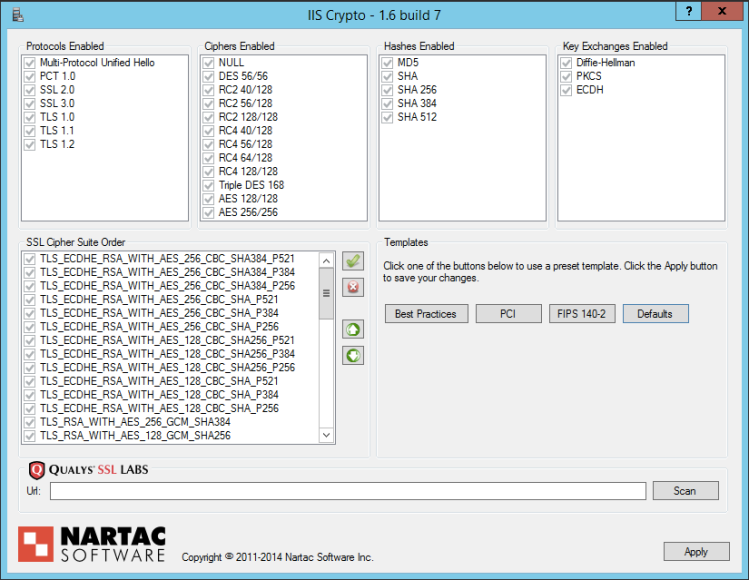


 Frame by Frame